

KeePassXC (password manager and TOTP creator)
1. Purpose and scope of application
KeePassXC can be used for two purposes:
- In order to manage password and
- to generate codes for two-factor authentication (2FA) via TOTP (time-based one-time password).
This feature enables the second factor to be generated on the computer, eliminating the need for an additional smartphone with an OTP app, or for a work computer to be used as the primary device.
- Target group: Students and staff at the university of Wuppertal.
- BUW context: 2FA is mandatory for employees. Its use is recommended for students and will become mandatory for all students from December 2026 .
Overview
-
KeePassXC as Passwortmanager
- 2. Requirements
- 3. Install and launch KeePassXC
- 4. Create a new KeePassXC database
- 5. Save login details in KeePassXC
- 6. Setting up BUW-2FA for KeePassXC
- 7. Setting up TOTP in KeePassXC
- 8. View, copy and use the 2FA code
- 9. Browser integration for password management
- 10. Back-up, recovery and security
2. Requirements
- KeePassXC installed on Windows, macOS or Linux.
- A personal ZIM account and a valid ZIM PIN for the registration portal.
- Access to the BUW pages for 2FA registration: registration code in OTP Self Service, followed by setup in the OTP Manager.
- Correct time set on the computer. TOTP only works reliably if the system time and time zone match.
- For VPN use: Cisco Secure Client has been installed and the 2FA VPN profile has been set up in accordance with the ZIM instructions.
3. Install and launch KeePassXC
- Download KeePassXC from the official KeePassXC website.
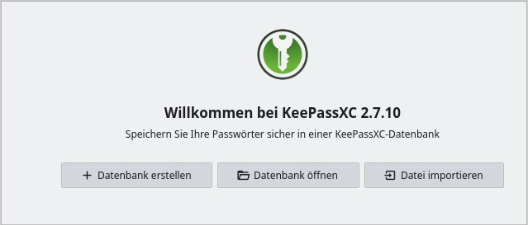
- Once you’ve launched the programme, the start screen will appear.
Select ‘Create database’ if you do not yet have a KeePassXC database.
4. Create a new KeePassXC database
- Click ‘Create database’.
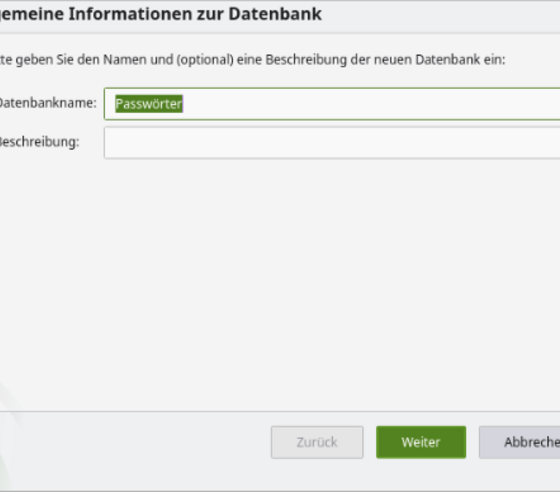
- Choose a database name that makes sense to you, for example ‘BUW Password Database’.
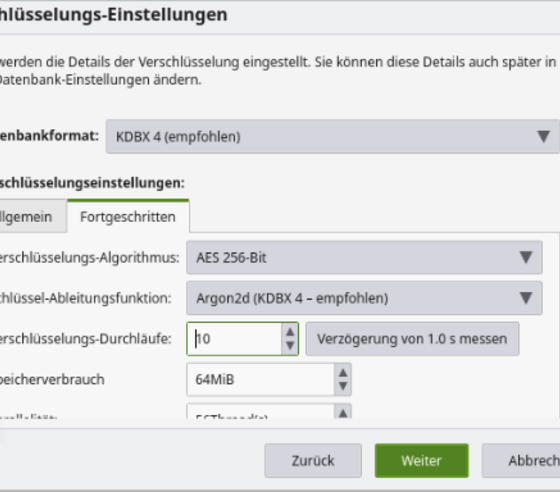
- Leave the database format as ‘KDBX 4 (recommended)’ and only change the encryption settings if you are aware of the implications.
- Choose a long master password that is known only to you. A passphrase consisting of several random words plus additional characters is suitable.
- Save the file in a location to which only you have access. Do not use shared folders for the production database.
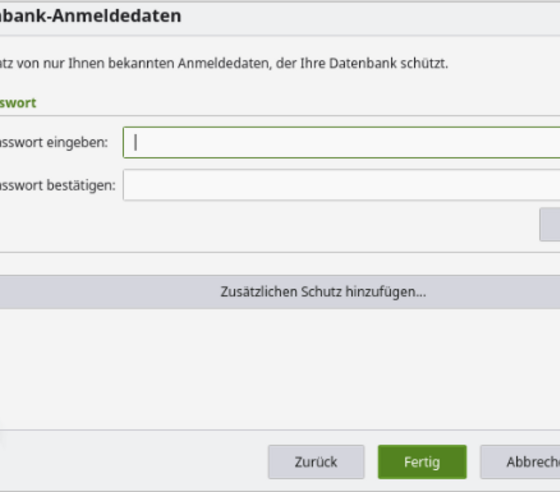
Important: Do not forget your master password.
It safeguards all your stored passwords and TOTP secrets. Without the master password , it is not possible to restore the database.
5. Save login details in KeePassXC
In order to use KeePassXC as a password manager, it is necessary to create a separate entry for each service.
For BUW services, an entry could be called, for example, ‘BUW Moodle access’.
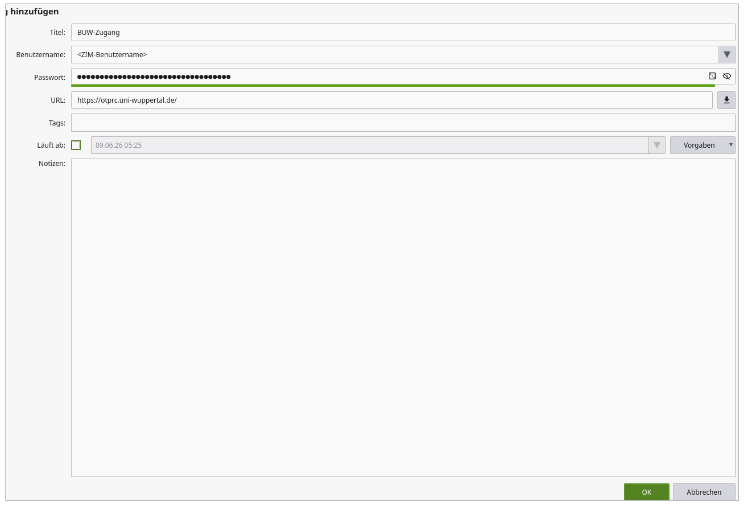
- Open the database and click on the plus icon or select ‘Entries’ > ‘New Entry’.
- Enter a unique title, the username, the password (optional) and the service’s URL.
- Save the entry by clicking “OK”
6. Setting up BUW-2FA for KeePassXC
The process of setting up two-factor authentication (2FA) at BUW is a two-step procedure.
- Firstly, a registration code is generated in the registration portal.
- Then the OTP key is set up in the 2FA portal.
In this guide, KeePassXC replaces the smartphone app by storing the secret OTP key in KeePassXC.
At the end of the process, please copy the secret key for KeePassXC:
If available, open the manual setup or the secret key/otpauth link.
This value will need to be entered into KeePassXC.
If only a QR code is displayed, check whether the stored OTP auth link can be viewed or copied. Do not save or share the code.
Once you have completed the 2FA setup, please refer back to these instructions.
7. Setting up TOTP in KeePassXC
- Select the entry for which you wish to save the 2FA code, for example ‘BUW Access’.
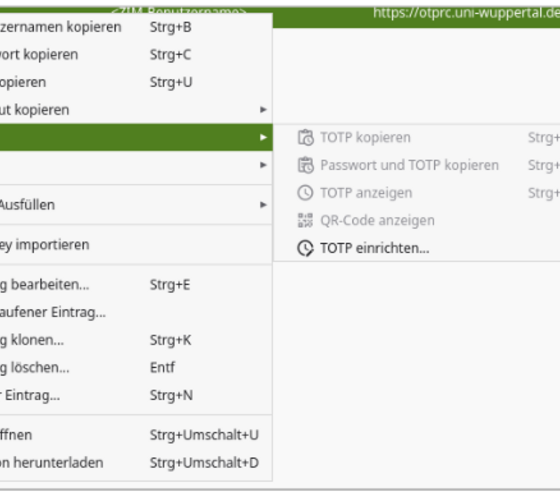
- Right-click to open the context menu and select ‘TOTP’ > ‘Set up TOTP…’.
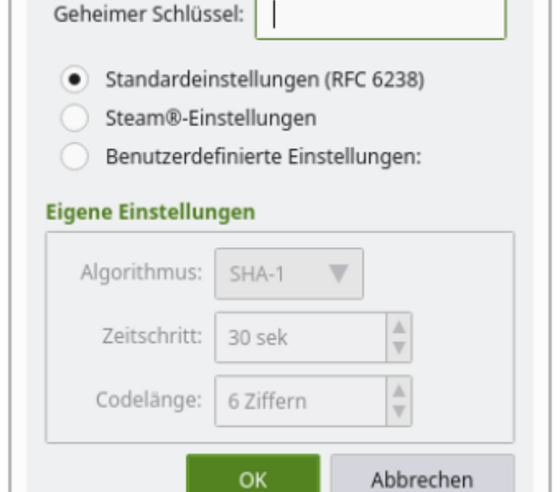
- Paste the secret key or the OTP auth link from the BUW 2FA portal into the ‘Secret key’ field.
- Leave the default settings at RFC 6238 unless the BUW portal specifies different values.
- Proceed by clicking “OK”.
Note on the secret key: The secret key is just as important to protect as a password.
8. View, copy and use the 2FA code
- Open and unlock your KeePassXC database.
- Right-click on the entry.
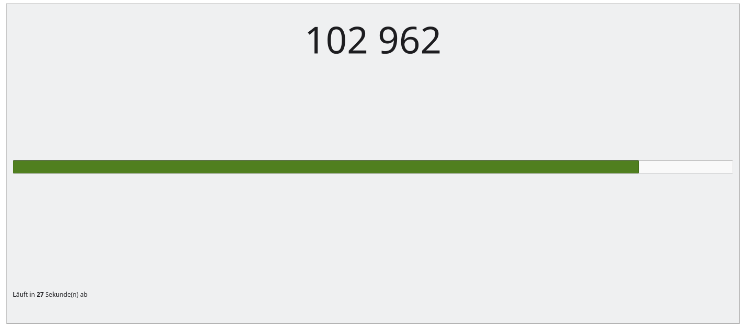
- Select ‘TOTP’ > ‘Show TOTP’ or ‘Copy TOTP’.
- Enter the 6-digit code displayed in the BUW login or VPN dialogue box (as the “second password”).
The code is regenerated every 30 seconds. If there are only a few seconds remaining, it is advisable to wait for the next code so that it does not expire while you are logging in.
9. Browser integration for password management
KeePassXC can automatically fill in login details into web forms using the browser extension.
To do this, the integration must be enabled in both KeePassXC and the browser. This feature is optional and primarily relates to password management; it is not strictly necessary for using TOTP.
- Install the ‘KeePassXC Browser’ extension from your browser’s official extension catalogue.
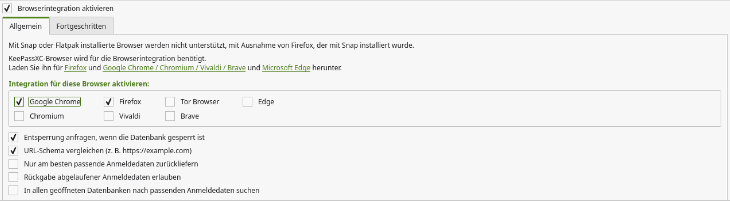
- In KeePassXC, open ‘Tools’ > ‘Settings’ > ‘Browser Integration’.
- Tick the box marked ‘Enable browser integration’ and select the browser you are using.
- Restart your browser and link the browser extension to the unlocked KeePassXC database.
- Ensure that only websites that are appropriate are granted access, and always check the URL before entering in any details.
10. Back-up, recovery and security
- Backup: It is recommended that users regularly back up their KeePassXC database. A backup without the master password is useless; a backup with a known master password protects against data loss.
- Access rights: Store the production database only in a private location. Avoid shared folders and unencrypted removable storage devices.
- Separation of factors: For greater security, the password and TOTP can be stored in separate KeePassXC databases. The TOTP database is then only opened when necessary.
- QR code/secret: Do not print, save or send the QR code or the secret key. Once set up successfully, it should no longer be available.
- Changing devices: Prior to transitioning to a new device, ensure that the database and, where applicable, the separate TOTP database have been backed up and can be accessed on the new device.
