
External VPN access to the BUW network
General information on VPN (Virtual Private Network) connections
Some of the BUW’s services, such as internal announcements, the university's library databases or access to licensed software are only available in the University’s internal computer network.
To access these services off-campurs, you will need a VPN connection. This will assign you an IP address from the university’s address range, which identifies your computer as belonging to the university.
In addition to your ZIM account name and password (which are the same as for all other ZIM services, e.g. Webmail), you will need a so-called VPN client, which establishes a secure connection to the university network.
Two-factor authentication
BUW employees can only use the VPN with two-factor authentication (2FA).
BUW students can use the VPN with or without two-factor authentication (2FA). 2FA will become mandatory for students as of November 30, 2026.
Download and instructions for the desktop clients
To access the VPN service, you need the client for your correspoding operating systems. Below you will find instructions on how to set up the various clients.
For licensing reasons, you can only download the software after authenticating with your ZIM account.
Download and installation instructions for the VPN client without two-factor authentication (2FA):
Download and installation instructions for the VPN client with two-factor authentication (2FA):
Download Cisco Secure Client with 2FA
(Enter your second factor in the ‘Second Password’ / ‘2nd Password’ field.)
If your Windows device has an ARM processor (e.g. some Microsoft Surface devices), you can download the according client from the specifically set up page.
Download link for mobile devices: Apple App Store & Google Play Store
Establishing a VPN connection
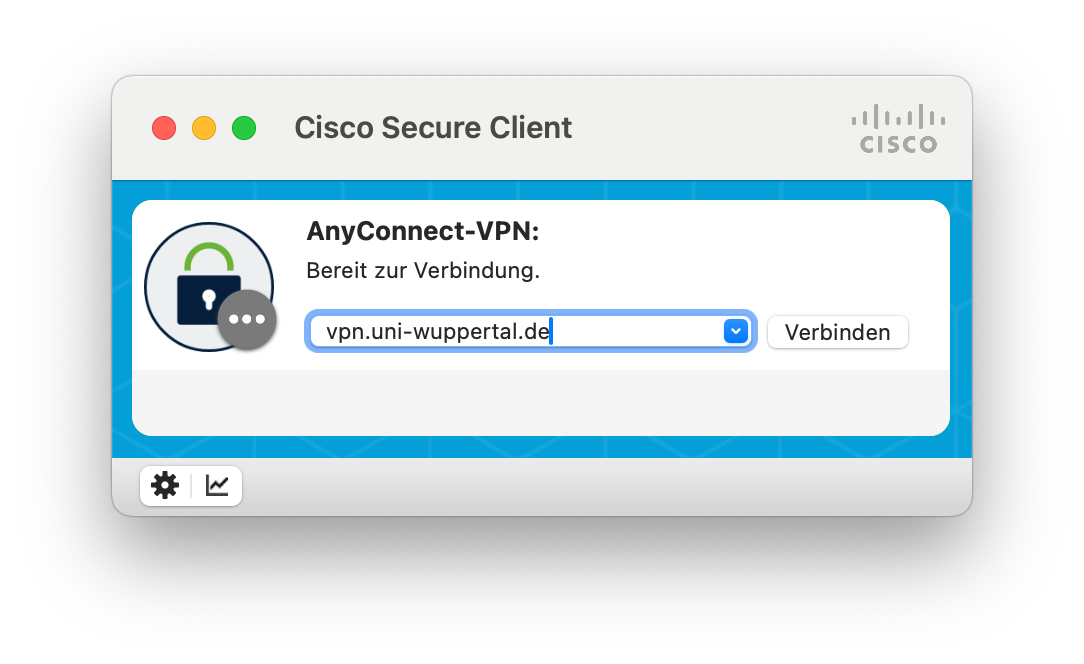
Click to enlarge
Without two-factor authentication (2FA), you connect as shown to: vpn.uni-wuppertal.de
If you have an account with 2FA, please use: vpn.uni-wuppertal.de/2fa
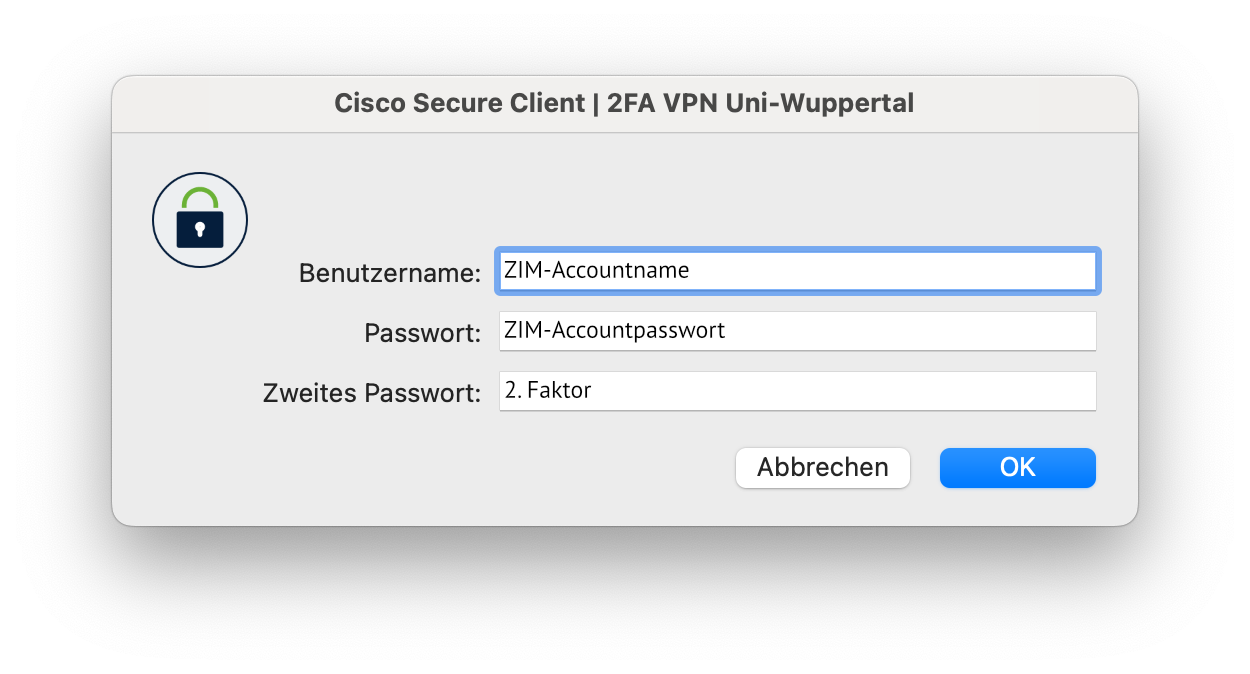
Click to enlarge
To log in, please use your personal ZIM account as shown.
If you have enabled the two-factor authentication for your account, enter your 2FA code in the ‘Second password’ field.
If you have any questions, please contact the user support service (Benutzerberatung), phone: 0202 439-3295.
FAQ
Yes, it is generally possible to use the Cisco VPN client on a computer with multiple local user accounts.
Please note, however, that the VPN client will only work if no other users are logged in in the background. Even if a user locks their screen without logging out completely, another user will not be able to connect to the VPN successfully.
It is therefore important that all other users are entirely logged out to avoid conflicts or connection issues.