
Two-factor authentication (2FA)
Note
Two-factor authentication is required for employees.
Students are advised to use two-factor authentication to log in. Two-factor authentication will become mandatory for students as of November 30, 2026.
General information on two-factor authentication
Two-factor authentication (2FA) refers to the verification of a user’s identity using a combination of two different and, in particular, independent components (factors). Two-factor authentication is only successful if two specified components or factors are used together and both are correct.
University personell can from now on access sensitive services from outside the university via VPN only after successfully completing 2FA.
Students are recommended to set up 2FA, but this will only become mandatory as of November 30, 2026.
In addition to the password, one-time passwords will be required as a second factor.
To continue using these services, you should henceforth set up and use 2FA for your personal account.
In future, you will therefore need the following for such senstive services:
- your personal login name,
- your password and
- a 6-digit code with limited validity (known as a time-based one-time password, or TOTP for short).
Ideally, the 6-digit code is generated on your personal mobile phone via an app, which must first be set up using a ‘secret QR code’. You must therefore open this app each time you wish to log in.
The secret QR code only needs to be scanned once and forms the basis for the 6-digit code, which is recalculated every half minute and additionally requested during the login process.
Apps for using two-factor authentication
Possible apps include, for example, FreeOTP+ (link below), Google Authenticator and others.
- "OTP Auth" in the Apple App Store
- “FreeOTP+” in the Google Play Store
Alternatively, instead of your mobile phone and an app, you can also use a hardware authenticator / TOTP generator.
Set-up in five steps
To connect your existing ZIM account to the secret QR code and generate the QR code, a multi-step process is required:
- First, go to https://otprc.uni-wuppertal.de and log in using your ZIM-PIN (not your ZIM account password).
- Generate a new registration code and then copy this registration code, which will be your one-time password (6-digit number) in the next step.
- Go to https://otpm.uni-wuppertal.de and log in using the one-time password.
- Generate the secret QR code there and scan it using your app. The app will then generate the time-limited 6-digit code based on the QR code.
- Set up a new profile in your Cisco Secure Client (VPN client) . Enter vpn.uni-wuppertal.de/2fa as the server URL. It is important to include the suffix “/2fa” at the end.
Once you have successfully authenticated with your username and password, you will also be asked for the 6-digit code. You only need to carry out this set-up once. Once this is done, you can in future easily authenticate using two-factor authentication via the app.
Was that too fast?
What you'll need:
- Your ZIM-PIN (not just your ZIM account password)
- Web browser on your desktop computer
- Smartphone with the app installed
- Cisco Secure Client is installed on your desktop computer
1. Log in to the registration portal
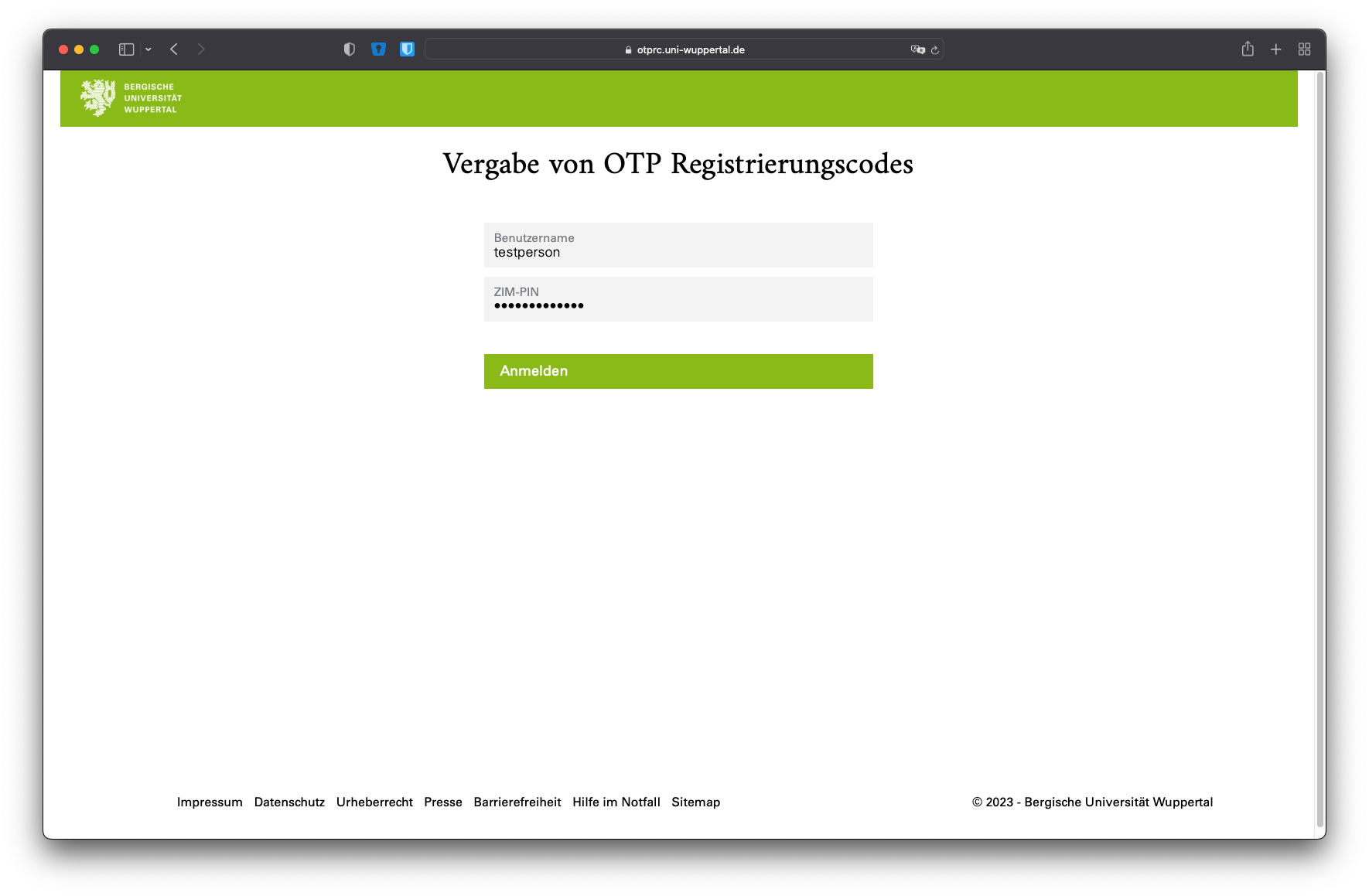
- Go to the registration page at https://otprc.uni-wuppertal.de
- Fill in the fields:
- Username: Your account name
- ZIM-PIN: The ZIM-PIN associated with your account
- Click on "Log in"
2. Generate a registration code
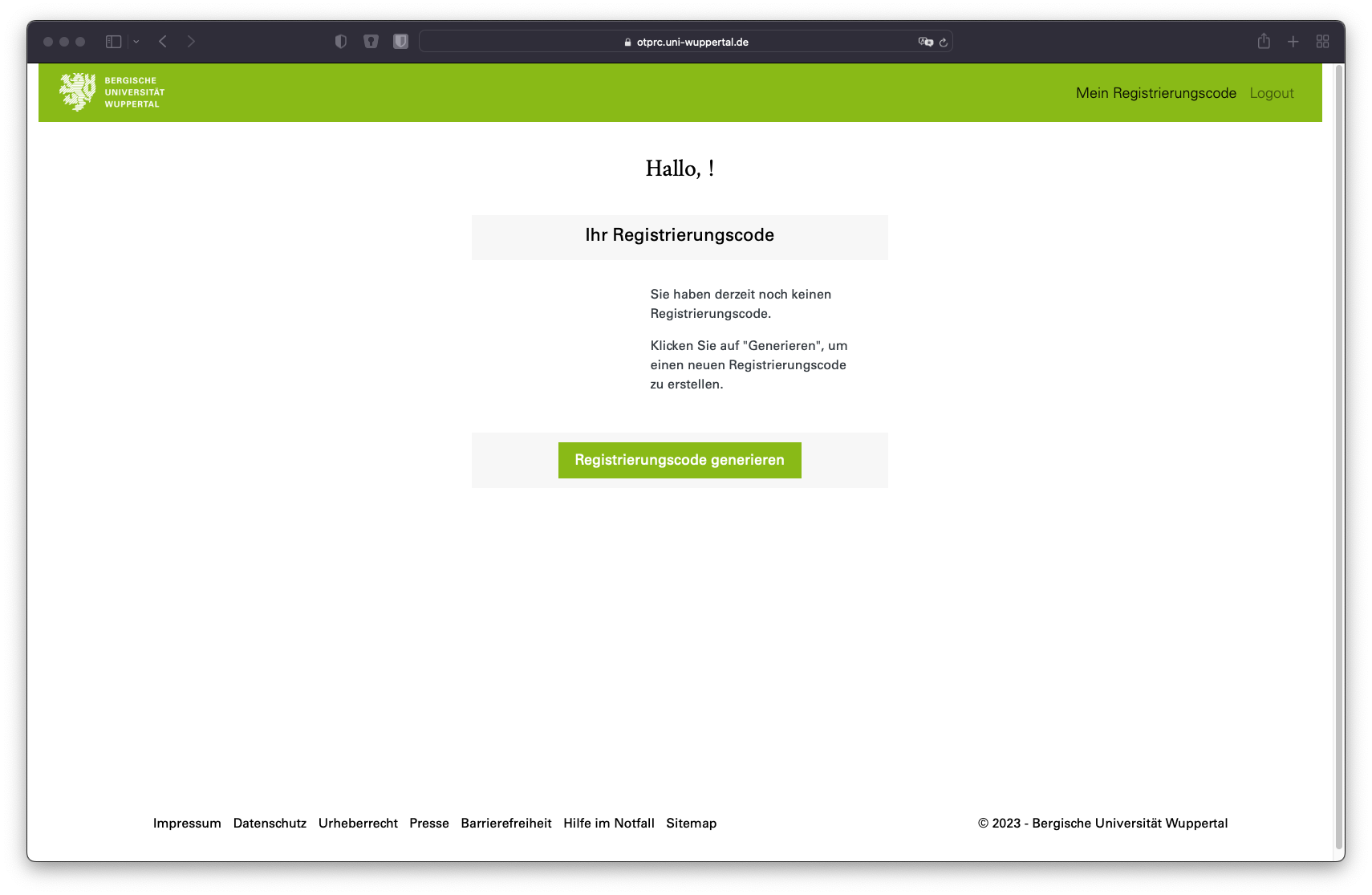
- Click on ‘Generate registration code’
3. View registration code
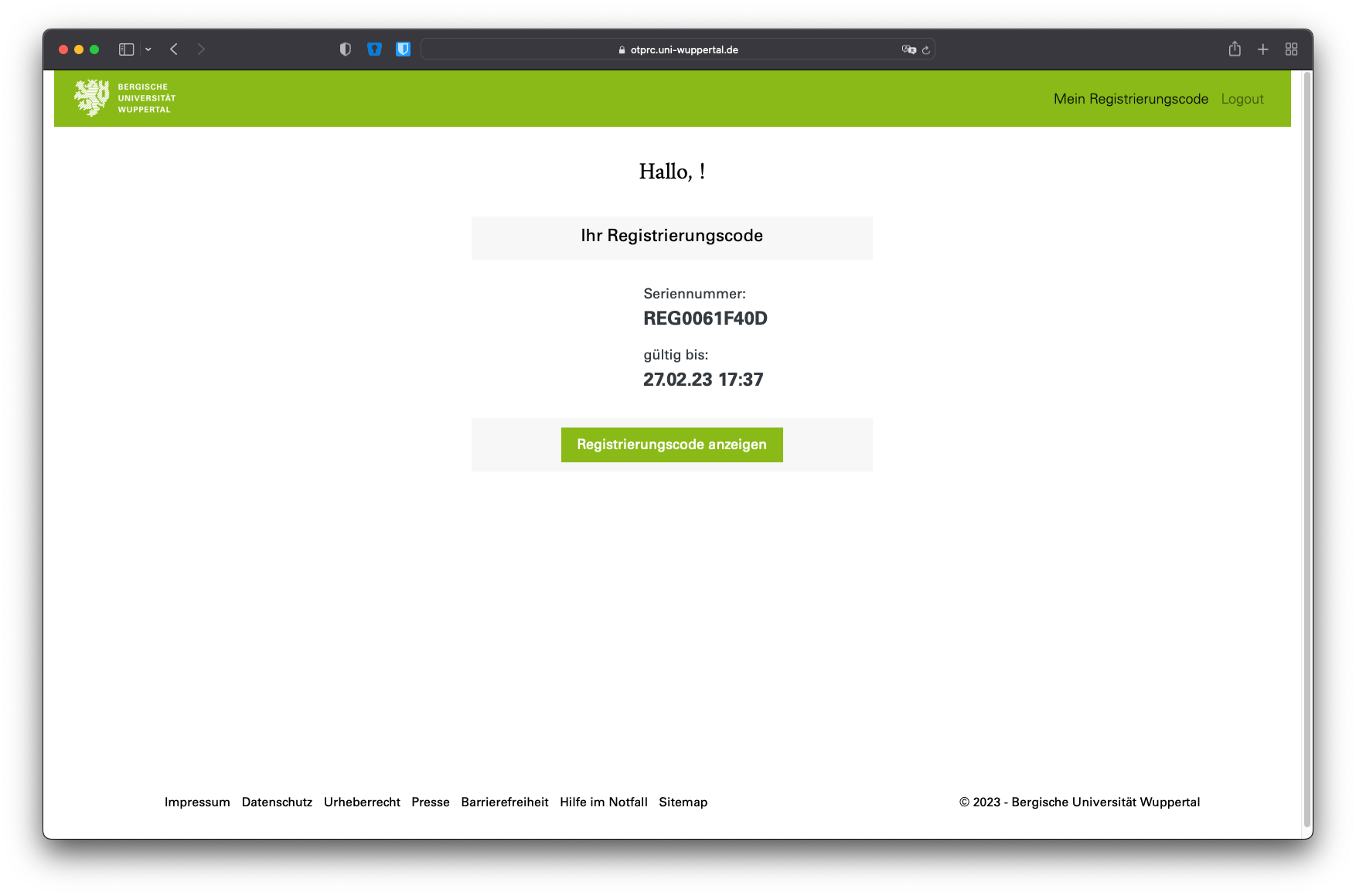
The registration code has now been generated. It is valid for one hour and will then be automatically deactivated.
- Click on ‘Show registration code’
4. Copy the registration code
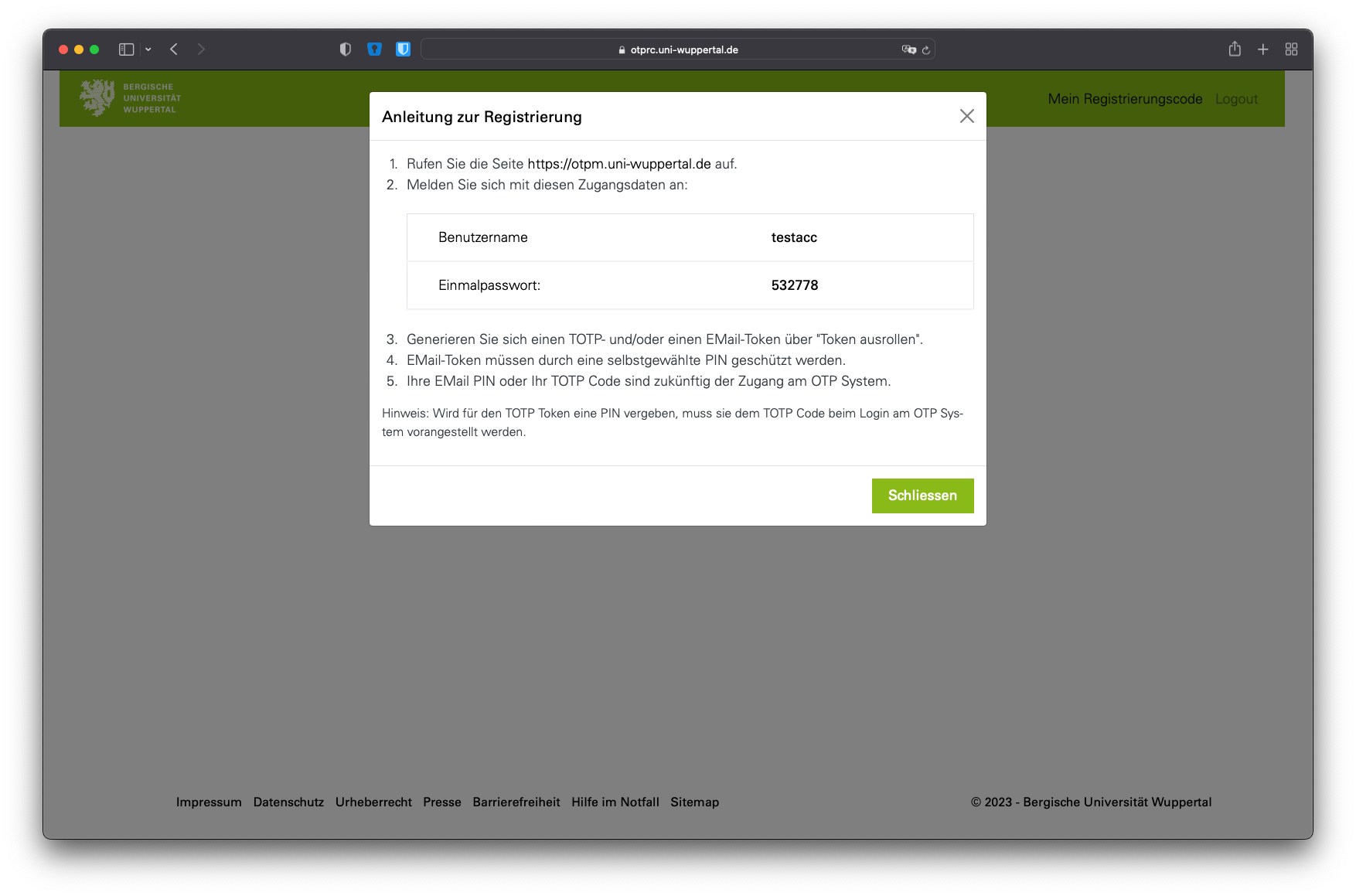
A new window will open titled ‘Registration Guide’
- Copy the one-time password to your clipboard (select the password and press Ctrl+C ).
- Go to the 2FA portal (“ZIM MFA Service”) at https://otpm.uni-wuppertal.de.
5. Log in to the 2FA portal
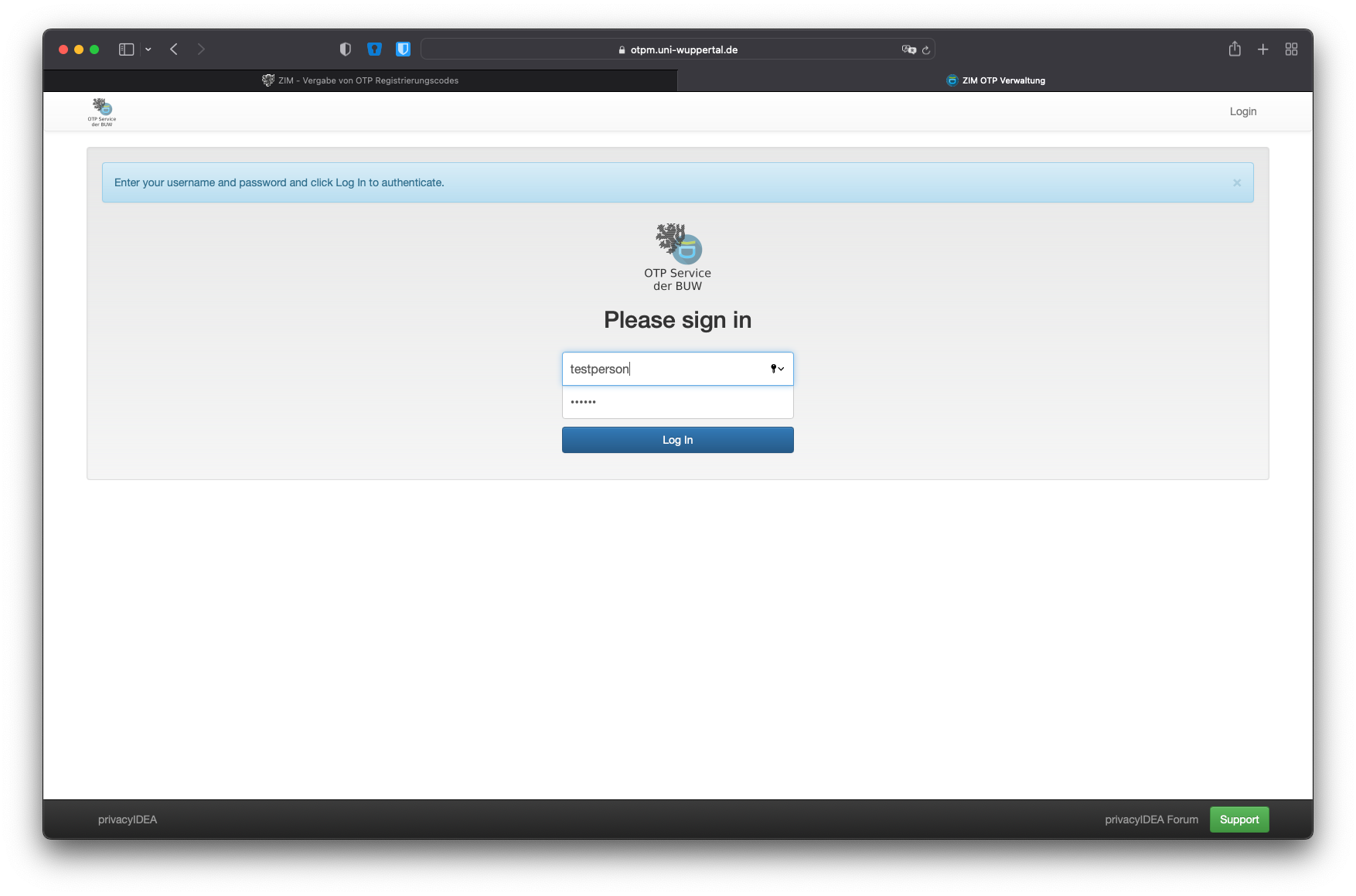
- Please fill in the fields as follows:
- Username: Your ZIM account name
- Password: the one-time password generated in step 4
- Log in by clicking on ‘Log in’
6. Generate an OTP key
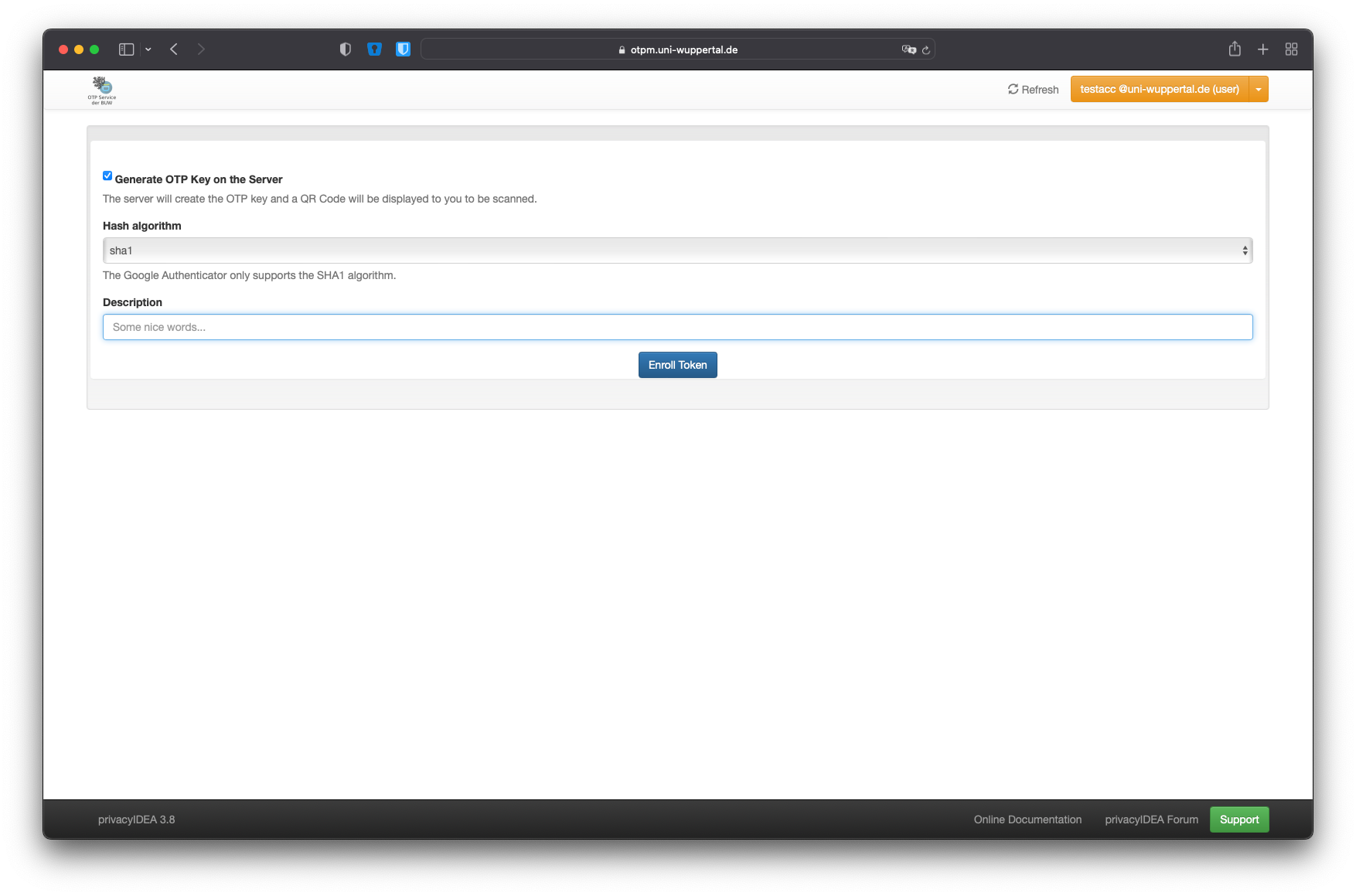
After logging in for the first time, you will immediately be given the option to generate an OTP key (One-Time Password key (the shared secret)).
- Hash algorithm: Leave the default selection ‘sha1’
- Description: A brief description to help you distinguish between OTP keys if several are generated (e.g. the name of the device)
- Click on ‘Roll out to token’
Please note: Most TOTP apps only support the SHA-1 algorithm set by default. Only use other algorithms if your 2FA app explicitly supports those!
If an incompatible algorithm is used, two-factor authentication will not work. The apps we recommend all support currently available algorithms .
7. Scan the QR code

Scan the QR code now displayed using your 2FA app.
Please note: This secret QR code should only be used for the initial and singular set-up.
Do NOT save, print or copy the code, and NEVER share it with anyone!
Setting up the 2FA app
1. Installing the 2FA app
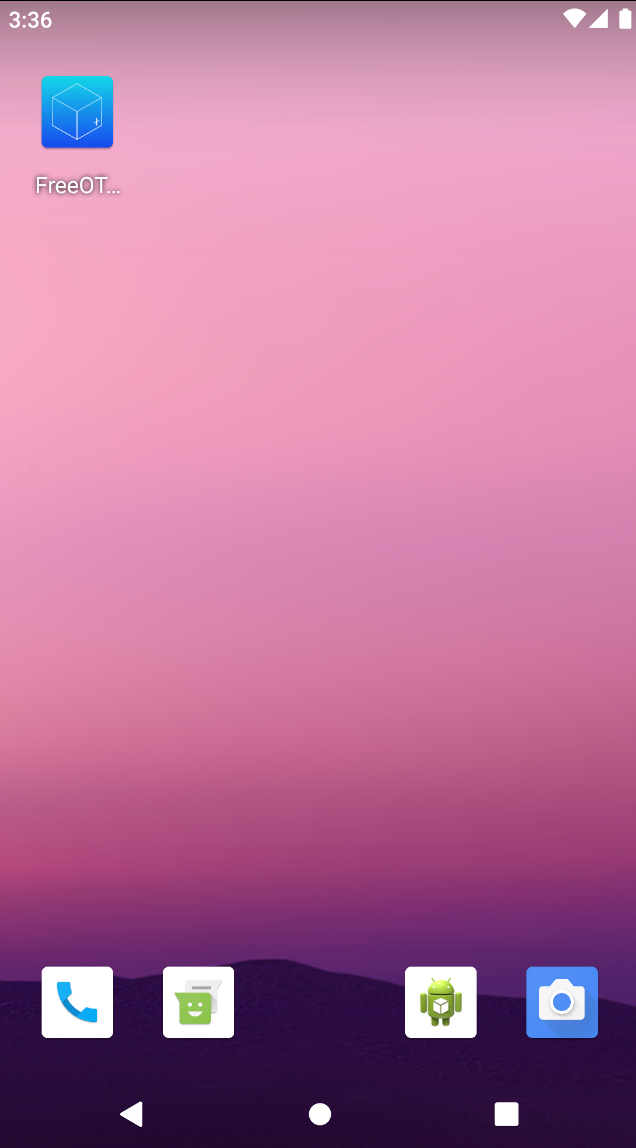
- Download the app (FreeOPT+ for Android / OTP Auth for iOS) from your smartphone’s app store
- Open the FreeOPT+ app on your smartphone
2. Add token to the app
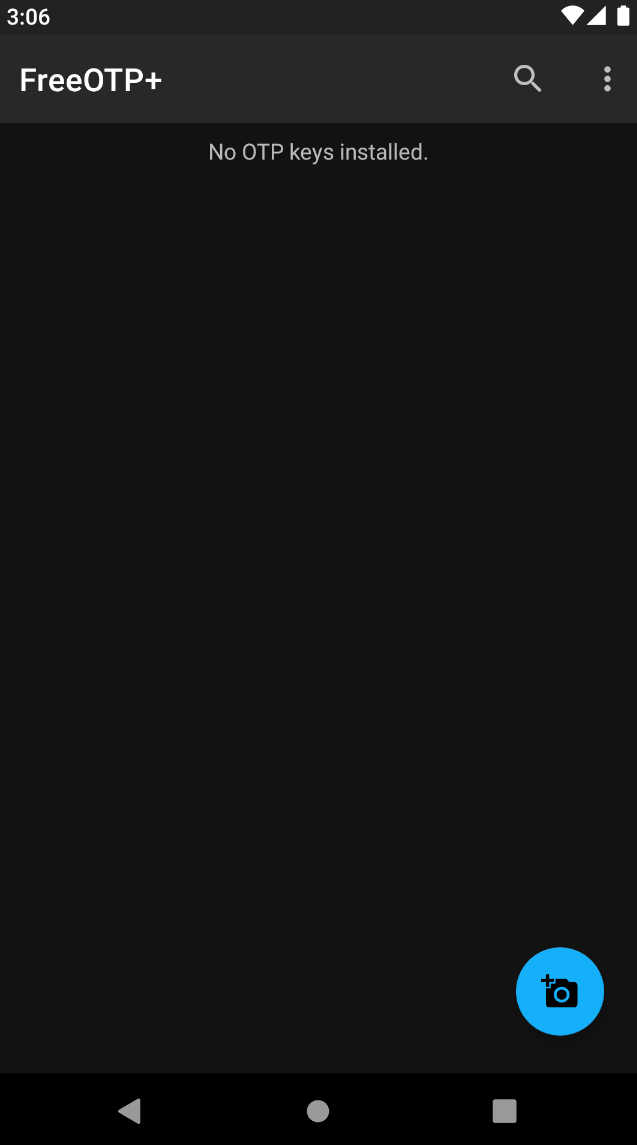
- On the app’s main screen, press the blue camera button
- Hold your smartphone in front of the computer screen. The QR code should be centred within the displayed window.
3. Show tokens
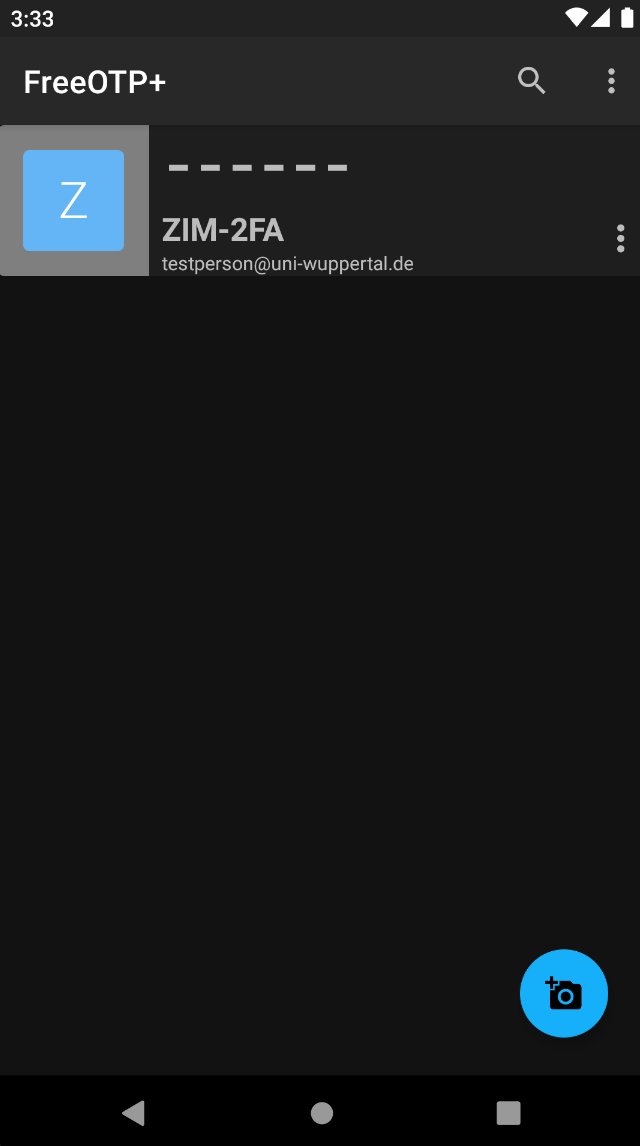
By default, the app hides the generated tokens.
- To show the tokens, tap the relevant list entry
4. Using tokens
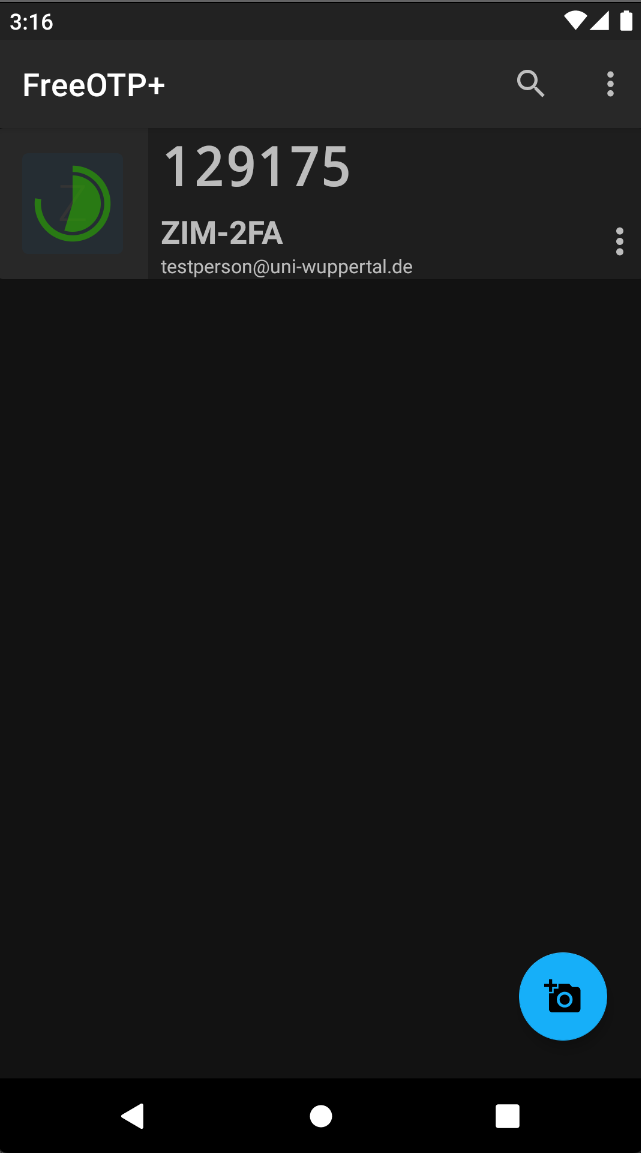
- The token now displayed is valid for 30 seconds and can be used as a second factor while logging in to the Cisco Secure Client.
VPN client
Download Cisco VPN Client
Contact: zimber[at]uni-wuppertal.de